Author: Mischa Buijs

VCF Orchestrator Node.js Environment Variables

In this blog post, we will explore how to use environment variables in a Node.js script running inside Broadcom VMware VCF Orchestrator. Environment variables are a great way to configure your scripts without hardcoding values, making your code more flexible and secure.

Environment Variables in VCF Orchestrator

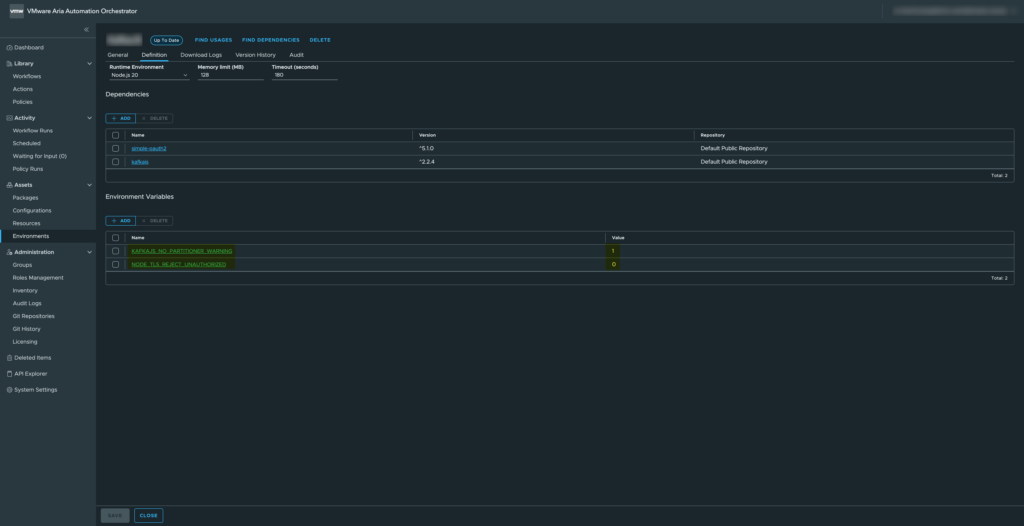
For this example, we will use two environment variables available in the VCF Orchestrator environment.
– KAFKAJS_NO_PARTITIONER_WARNING
– NODE_TLS_REJECT_UNAUTHORIZED

These variables are commonly used when integrating with Kafka or handling TLS certificates in Node.js.
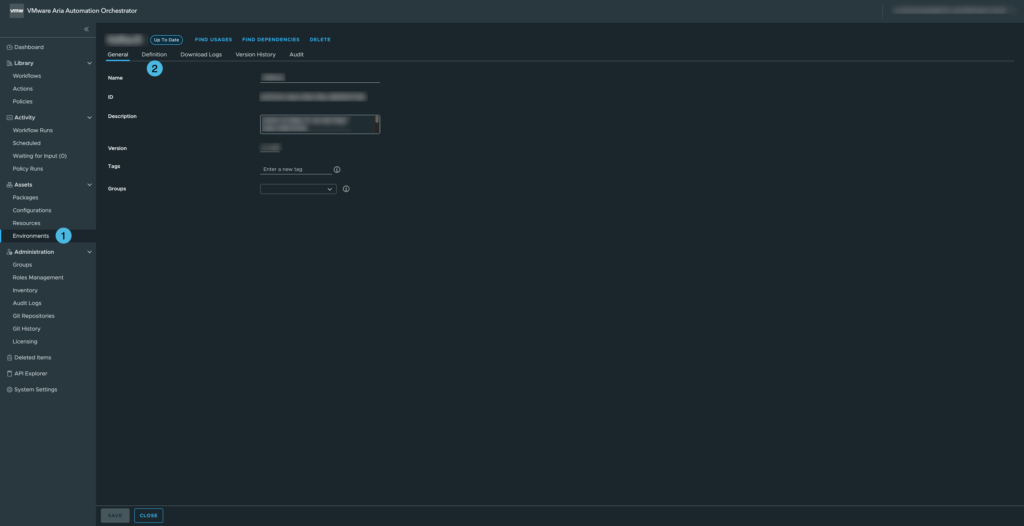
01 - VCF Orchestrator - Node.JS - Environment variables
VCF Orchestrator – Node.JS – Environment variables
02 - VCF Orchestrator - Node.JS - Setting environment variables
VCF Orchestrator – Node.JS – Setting environment variables

Loading and Validating Environment Variables

Below is a function that retrieves these environment variables and validates their values:

// Load container environment variables
const loadEnvs = () => {
    const { KAFKAJS_NO_PARTITIONER_WARNING, NODE_TLS_REJECT_UNAUTHORIZED } = process.env;

    // Validation: only "0" or "1" are allowed
    if (!['0', '1'].includes(KAFKAJS_NO_PARTITIONER_WARNING)) {
        throw new Error(`${LOG_PREFIX} Invalid KAFKAJS_NO_PARTITIONER_WARNING value: ${KAFKAJS_NO_PARTITIONER_WARNING}`);
    }
    if (!['0', '1'].includes(NODE_TLS_REJECT_UNAUTHORIZED)) {
        throw new Error(`${LOG_PREFIX} Invalid NODE_TLS_REJECT_UNAUTHORIZED value: ${NODE_TLS_REJECT_UNAUTHORIZED}`);
    }

    // Return the validated variables
    return { KAFKAJS_NO_PARTITIONER_WARNING, NODE_TLS_REJECT_UNAUTHORIZED };
};

Explanation: We destructure the variables directly from process.env. Validation ensures the variables are either “0” or “1” only, preventing invalid configurations. The function returns an object with the validated variables, which can be safely used in your script.

Using the Environment Variables

Once loaded, you can use these variables in your Node.js script like this:

// Load environment variables
const envs = loadEnvs();

console.log(`${LOG_PREFIX} Setting environment variable KAFKAJS_NO_PARTITIONER_WARNING=${envs.KAFKAJS_NO_PARTITIONER_WARNING}`);
console.log(`${LOG_PREFIX} Setting environment variable NODE_TLS_REJECT_UNAUTHORIZED=${envs.NODE_TLS_REJECT_UNAUTHORIZED}`);

This allows you to reference the environment variables throughout your script, for example to configure KafkaJS behavior or TLS certificate validation.

Why This Approach Is Useful

  • Centralized configuration: No hardcoding; variables can be changed per environment.
  • Fail-fast validation: The script throws an error immediately if a variable has an invalid value.
  • Secure defaults: Particularly important for TLS and security-related flags.
  • Reproducibility: Works consistently across VCF Orchestrator containers.

This setup ensures that your Node.js scripts in VCF Orchestrator are flexible, secure, and maintainable, while keeping the environment-specific configuration outside your code.
VCF Orchestrator the JavaScript week-number

While working with Broadcom VMware Cloud Foundation (VCF) Orchestrator, formerly known as vRealize Orchestrator, I ran into a subtle but very real problem: week numbers that did not match what we expect in The Netherlands.

At first glance this looked like a bug in the platform. In reality, it turned out to be a classic JavaScript date-handling pitfall that becomes especially visible in automation workflows.

The issue: week numbers don’t line up

In one of my Orchestrator workflows I evaluated two timestamps:

  • 2025-02-17 20:39:00.000 +01:00 → returns week 7
  • 2025-02-18 20:39:00.000 +01:00 → returns week 8

From a Dutch perspective, both dates fall in week 8. So why does JavaScript suddenly jump a week overnight?

ISO-8601 vs local expectations

The answer lies in how JavaScript (and most supporting libraries) determine week numbers.

JavaScript itself does not have a native getWeek() function, but most common implementations follow the ISO-8601 standard:

  • Weeks start on Monday
  • Week 1 is the first week of the year that contains at least four days in the new year
  • Week boundaries are calculated relative to Thursday

For 2025, that leads to the following result:

  • Monday, February 17, 2025 → still ISO week 7
  • Tuesday, February 18, 2025 → ISO week 8

So while this feels “wrong” locally, JavaScript is technically correct according to ISO-8601.

Why this matters in VCF Orchestrator

In Broadcom VMware VCF Orchestrator, JavaScript is often used to:

  • Schedule tasks
  • Generate weekly reports
  • Drive time-based logic in workflows
  • Integrate with external systems like ITSM or ticketing platforms

If your organization assumes Dutch calendar logic without explicitly coding for it, you can end up with off-by-one-week errors that are extremely hard to trace later.

The solution: make the week calculation explicit

To avoid ambiguity, I implemented an explicit ISO-week calculation in JavaScript and documented it clearly in the action itself. This ensures that anyone reading or reusing the code understands exactly which standard is applied.

Here is the action I use in Orchestrator:

function calculateCurrentWeek(dateNow) {
	function getISOWeekNumber(date) {
	    var d = new Date(date.getTime());
	    d.setHours(0, 0, 0, 0);
	    
	    // Adjust to the Thursday of the current week
	    d.setDate(d.getDate() + 3 - (d.getDay() || 7));
	
	    // Find the start of the year (first Thursday's week)
	    var yearStart = new Date(d.getFullYear(), 0, 4);
	    yearStart.setDate(yearStart.getDate() + 3 - (yearStart.getDay() || 7));
	
	    // Calculate the week number
	    var weekNumber = Math.round(((d - yearStart) / 86400000) / 7) + 1;
	
	    return weekNumber;
	}
	
	// Set variable
	var actionName = arguments.callee.name.substr(6);
	
	// Input validation
	if (!(dateNow instanceof Date)) {
	    throw new Error("[" + actionName + "] 'dateNow' must be a Date object");
	}
	
	// Calculate the week number
	var weekNumber = getISOWeekNumber(dateNow);
	
	// Return the result
	return weekNumber;
	
}

Takeaway

This is not a bug in Broadcom VMware VCF Orchestrator, nor in JavaScript itself. It is a reminder that date logic is never “obvious” in automation.

If your workflows depend on week numbers:

  • Decide explicitly which standard you use (ISO vs local convention)
  • Document that choice in your actions
  • Never rely on “what feels correct” for calendar logic

In automation platforms like VCF Orchestrator, these small details can make the difference between predictable workflows and subtle production issues that surface weeks later.

Your subscription has expired Aria Automation Orchestrator 8.18

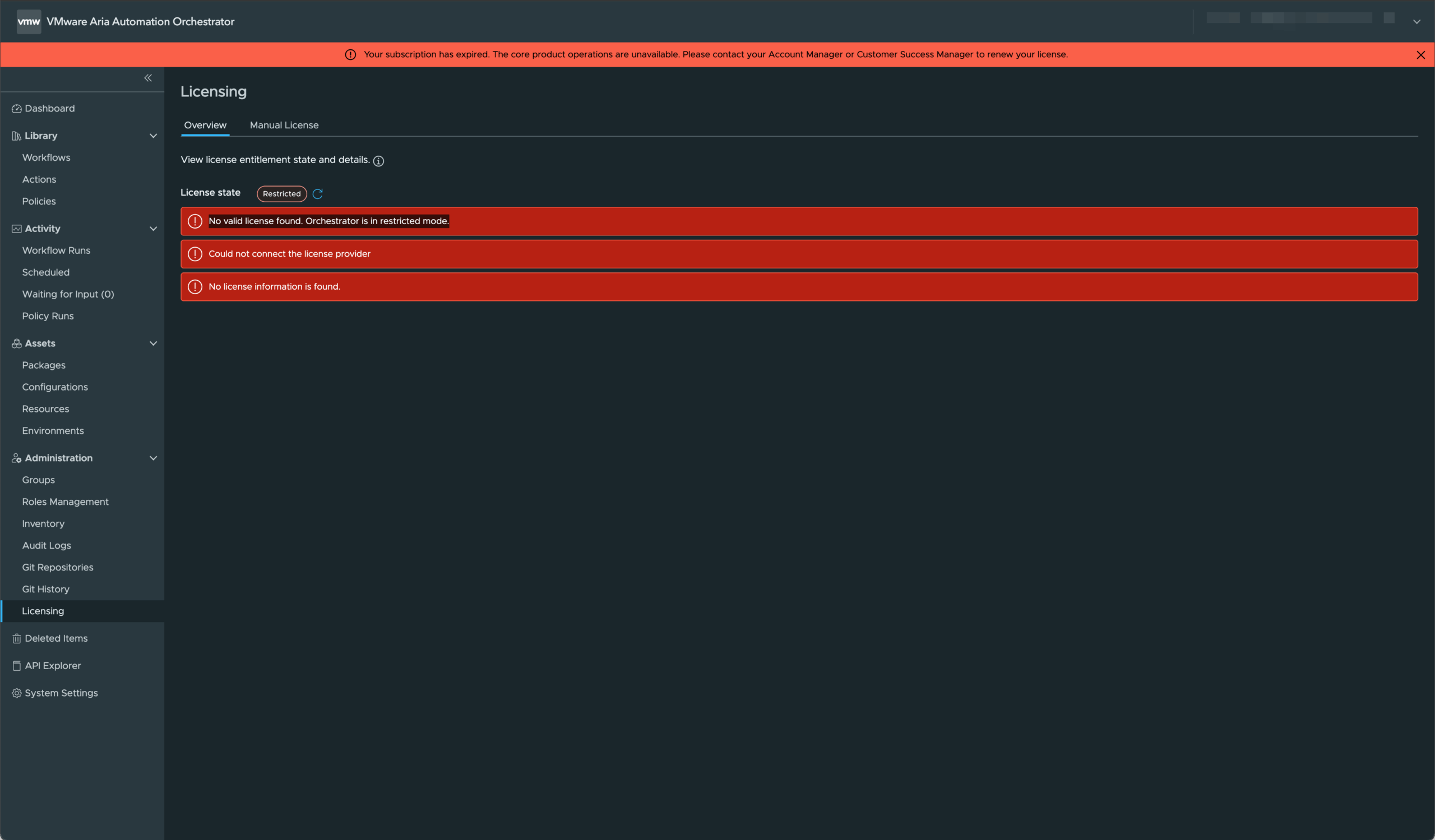
After upgrading to VMware Aria Automation Orchestrator 8.18.1 update 2, I was greeted with a warning banner that read: “Your subscription has expired. The core product operations are unavailable.“. Here’s a screenshot of the message as it appears on the License page in Aria Automation Orchestrator — just in case you’re wondering how it looks in the UI.

Despite the product being fully licensed and working perfectly prior to the upgrade, this message appeared across the UI and disrupted basic functionality. While searching for answers, I found the official fix in Broadcom KB 380260, which turned out to be spot-on.

The Problem – Your subscription has expired

With the release of version 8.18, VMware introduced an updated licensing mechanism tied to Aria With the release of version 8.18, VMware introduced an updated licensing mechanism tied to the Aria Universal Suite Subscription. If your system had an expired Authentication Token, the application incorrectly flagged the license as invalid — even though your actual subscription was still valid.

So while everything was fine on the licensing side, the platform’s backend had issues validating the license properly.

What Was Affected:

At the time of the issue, the following core functionalities were completely disabled:

  • No workflows could run
  • No scheduled workflows were executed
  • No policies were triggered

This essentially rendered the product useless and unavailable for serving any customer platforms.

The Solution

Here’s what fixed it for me:

  1. SSH into the Aria Automation Orchestrator appliance.
  2. Run the following command to fix the issue: (vracli vro properties set –key com.vmware.o11n.license.check.automation-endpoint.enabled –value false).
  3. Wait for the services to stabilize, or reboot the appliance if needed.
  4. After a few minutes, the warning disappeared and all functionality returned to normal.

It was that simple — no need to re-upload the license, no need to redeploy anything. Just a simple command to run in the shell.

Final Thoughts

I’d suggest running this command as part of your post-upgrade validation checklist if you’re moving to Aria Automation 8.18 or later.

Have you seen similar issues after upgrades? Let me know on be-virtual.net — always happy to exchange notes.

VMware vExpert 2025

I’m excited to share that I’ve been selected as a VMware vExpert for the 9th year in a row! It’s always an honor to be recognized as part of this amazing community, and I’m grateful to continue being part of the program.

Looking back, it’s been quite a journey. What started as a passion for virtualization and a desire to share knowledge has evolved into something much bigger. Being a vExpert has opened doors to new connections, interesting projects, and an incredible network of talented and supportive professionals. Every year, I’m reminded of how valuable the community is—not just for technical learning but for the friendships and collaboration it fosters.

For those who might not know, the VMware vExpert program recognizes individuals who go above and beyond in sharing knowledge and contributing to the VMware community. It’s not a technical certification—it’s about giving back through blogging, public speaking, community forums, and more. If you’re passionate about VMware technologies and enjoy sharing your experiences, I highly encourage you to apply.

A huge thank you to VMware and the vExpert team for the recognition, and to everyone in the community who continues to support and inspire me. Here’s to another year of learning, sharing, and pushing the boundaries of what’s possible!

If you’re thinking about applying for the next vExpert round or just want to chat about all things VMware, feel free to reach out. Always happy to connect!

Installation of a VMware Aria Automation Orchestrator Certificate

Overview

This guide provides step-by-step instructions for installing a custom certificate on the VMware Aria Automation Orchestrator (VAAO) appliance. Using a proper certificate ensures secure communication and meets compliance requirements.

Preparation

Before starting the installation, ensure the TLS certificate is formatted correctly in a PEM file. The file should include the following components in the exact order:

-----BEGIN RSA PRIVATE KEY-----
<Private Key>
-----END RSA PRIVATE KEY-----
-----BEGIN CERTIFICATE-----
<Primary TLS certificate>
-----END CERTIFICATE-----
-----BEGIN CERTIFICATE-----
<Intermediate certificate>
-----END CERTIFICATE-----
-----BEGIN CERTIFICATE-----
<Root CA certificate>
-----END CERTIFICATE-----

Validate the structure and contents of the PEM file to avoid configuration errors.

Installing the Certificate

1. Log in to the Automation Orchestrator Appliance
Access the VAAO appliance command line over SSH using the root user account.

ssh root@<your-vaao-appliance-ip>

2. Upload the Certificate Chain File
Copy the PEM file containing the certificate chain to the appliance. For this example, the file is named HS-vRO01-full-chain.pem and is placed in the /root directory.

scp HS-vRO01-full-chain.pem root@<your-vaao-appliance-ip>:/root/

Ensure the file path on the appliance matches the one used in the next steps.

3. Select the Certificate
Run the following command to configure the new TLS certificate:

vracli certificate ingress --set /root/HS-vRO01-full-chain.pem --force

The --force flag ensures the changes overwrite any existing configuration if necessary.

4. Apply the New TLS Certificate
Execute the deployment script to apply the new certificate:

/opt/scripts/deploy.sh

This script updates the services with the new certificate. Monitor the output for any errors during the deployment process.

Wrap-Up

By following these steps, you have successfully installed and configured a custom TLS certificate on the VMware Aria Automation Orchestrator appliance. This ensures secure communication and aligns with best practices for infrastructure management. Always validate your certificate chain and monitor your appliance post-deployment to confirm functionality.

Feel free to drop me a comment if you have any questions or need further clarification.

VMware Aria Automation Orchestrator vSphere Plugin Configuration

Overview

Welcome to another post on be-virtual.net! Today, we’re diving into a powerful plugin within VMware Aria Automation Orchestrator—the vSphere plugin. This default plugin is designed to make managing vSphere environments smoother and more efficient, especially when it comes to automating workflows and connecting seamlessly with vCenter Server.

Configuration

Setting up the vSphere plugin might seem like a daunting task, but don’t worry—it’s pretty straightforward once you get the hang of it. Here’s how you can add a vCenter Server instance:

Step-by-Step Procedure:

  1. Log in to the Orchestrator interface with an admin account.
  2. Go to Library > Workflows.
  3. Navigate to Workflows > Library > vCenter > Configuration.
  4. Start the workflow: Add a vCenter Server instance.
  5. You’ll need to input the following details:
vCenter Server Instance Properties:
  • IP or Hostname: %fqdn-vcenter%
  • HTTPS Port: 443
  • SDK Location: /sdk
  • Ignore Certificate Warnings: True (This automatically accepts the vCenter Server certificate if you choose this option.)
Connection Properties:
  • Create Session Per User: True (This means Orchestrator will create a session per user for a more secure connection. You can choose Embedded: True / External: False based on your needs.)
  • Username: svc-vaao@example.local
  • Password: **********
  • Domain Name: example.local
Additional Endpoints:
  • PBM Endpoint URL: default
  • SMS Endpoint URL: default
  1. Once you’ve entered all the necessary details, simply Click Run, and the workflow will take care of the rest.

Screenshot

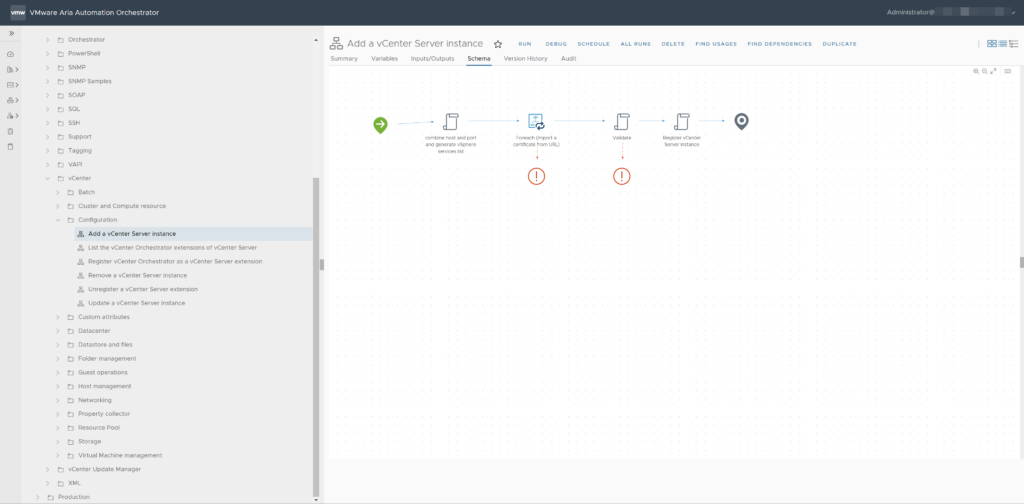
Here is an screenshot of the location of the workflow (Add a vCenter Server instance). This is the required workflow for adding a vSphere environment to VAAO.

VAAO - Add a vCenter Server Instance

Validation

Once you’ve configured the plugin, you’ll want to verify that everything is working as expected. Here’s a quick way to check if the plugin is properly connected to your vCenter Server:

  1. Go to Administration > Inventory in the Orchestrator interface.
  2. Under vSphere vCenter Server, you should see a vCenter Server listed and accessible at the object level.

If you’re not seeing this, it might be worth revisiting your configuration settings.

Wrap-up

I hope this guide helps you get the most out of the vSphere plugin. Feel free to drop me a comment if you have any questions or need further clarification.

Terraform Fortigate Provider Authentication Issue

Working with automation tools like Terraform can sometimes present unexpected challenges. Recently, we encountered a tricky authentication issue with the Fortigate Terraform Provider, specifically when attempting to create firewall resources. In this blog post, we’ll walk you through the problem, the error message we received, and how we ultimately solved it.

The problem

We were configuring the Fortigate Terraform Provider for a client project when we encountered a persistent authentication issue. Despite our best efforts to configure everything correctly, we kept running into a 401 Unauthorized error, which prevented us from successfully connecting the provider to the device and creating firewall resources.

Here’s the configuration we were using:

terraform {
  required_providers {
    fortios = {
      source  = "fortinetdev/fortios"
      version = "1.20.0"
    }
  }
}

provider "fortios" {
  hostname = "%ip-or-fqdn%"
  username = "%username%"
  token    = "%token%"
  insecure = "true"
}

resource "fortios_firewall_address" "trname" {
  name   = "test1"
  subnet = "22.1.1.0"
}

The error we kept seeing was as follows:

```
fortios_firewall_address.trname: Creating...
â•·
│ Error: [Warning] Can not update device version: 
│ <!DOCTYPE HTML PUBLIC "-//IETF//DTD HTML 2.0//EN">
│ <html><head>
│ <title>401 Unauthorized</title>
│ </head><body>
│ <h1>Unauthorized</h1>
│ <p>This server could not verify that you
│ are authorized to access the document
│ requested.  Either you supplied the wrong
│ credentials (e.g., bad password), or your
│ browser doesn't understand how to supply
│ the credentials required.</p>
│ <p>Additionally, a 401 Unauthorized
│ error was encountered while trying to use an ErrorDocument to handle the request.</p>
╵
```

This error clearly indicated that the server was unable to verify our credentials, which caused the resource creation to fail.

The solution

The real breakthrough came when my colleague Michael Meelis opened a GitHub issue to bring attention to the problem. A fellow user responded with a suggestion that ultimately resolved the issue. It turned out that a small but crucial tweak in the authentication settings was needed.

You can find the full discussion and solution in this GitHub issue.

The solution involved correctly configuring the API token and making adjustments to the authentication process. After implementing the suggested changes from the GitHub discussion, the authentication settings worked as expected, and we were able to successfully use the Fortigate Terraform Provider to create firewall resources.

myfgt # config system global 

myfgt (global) # set rest-api-key-url-query enable 

myfgt (global) # show
config system global
    set hostname "myfgt"
    set rest-api-key-url-query enable
    set timezone "US/Pacific"
end

myfgt (global) # end

Conclusion

Authentication and configuration issues like the “401 Unauthorized” error can be frustrating, but with the right approach, collaboration, and persistence, they can be resolved. Utilizing platforms like GitHub to share problems and find solutions proved essential to our success in this case.

Hope it was useful for someone! Please respond below if you have any comments or additional information!

VyOS Increase Disk Space

In this blog post, I will walk you through the process of increasing disk space on a VyOS installation. Whether you’re running VyOS on a virtual machine or a physical server, this step-by-step guide will help you seamlessly allocate more storage to keep your network operations running smoothly. From resizing partitions to adjusting file systems, we’ll cover everything you need to know to efficiently manage your VyOS environment’s disk space.

Preparation

Before you begin, ensure that you have a configuration backup of your VyOS system. This precautionary step is essential to safeguard your current settings and configurations, allowing for a quick recovery in case any issues arise during the disk space expansion process. Proper backups are crucial for maintaining the integrity and continuity of your network operations.

VyOS Commands

Here is an overview of the commands I used on the VyOS virtual machine to make it workout:

  1. Shutdown the virtual machine
  2. Increase the disk space of the boot media
  3. Start the virtual machine
  4. Run the following commands:
# Validate size
fdisk -l
df –h

# Remove partition
fdisk /dev/sda
p (print partition)
d (delete partition)
p (print partition)

# Create new partion
• n (create a new partition)
• p (select primary)
• 1 (select 1 since this only partition)
• 2 (this first cylinder saw in b) )
• 12191 (last cylinder - 1 )
• w (press w for writing change)

# Check
sudo partprobe

# Reboot system
reboot

# Confirm that partition size
partx /dev/sda

# Tell the Linux Kernel about the Change in disk size
sudo resize2fs /dev/sda1

# Reconfirm the increase disk size
df -h

# Reboot system to verify
reboot

Wrap-up

So this is my blog post about increasing disk space on a VyOS virtual machine. Hope it was useful for someone! Please respond below if you have any comments or additional information!

Home Connect Multicast Routing with Cisco

A blog post about Home Connect in combination with a Cisco Router on how to configure the multicast routing required.

So what is Home Connect? HomeConnect is a platform developed by Bosch that integrates various smart home appliances and devices. It allows users to remotely control and monitor compatible appliances such as refrigerators, ovens, dishwashers, washing machines, dryers, and more through a centralized app on their smartphones or tablets.

In the Home Connect documentation they talk about enabling multicast routing in the zone the Home Connect devices are located. Well the questions is which multicast routing configuration and which options should be configured.

I am using a Cisco ISR 1100 router, which has a more advanced configuration than the standard router most people use at home. The Cisco ISR runs Cisco IOS XE, which determines the commands available on the device.

Ultimately, I added the following multicast routing configuration to my WiFi zone dedicated to Home Connect. In the configuration below, the interface vlan 21 represents the network. This setup ensures that the Home Connect devices can communicate efficiently using multicast routing.

(config)#ip multicast-routing distributed
(config)#ip pim ssm default
(config)#interface vlan 21
(config-if)#ip igmp version 3
(config-if)#ip pim sparse-mode
(config)#exit
#exit
#copy run start

Wrap-up

So this is my blog post about Home Connect configuration on a Cisco ISR router. Hope it was useful for someone! Please respond below if you have any comments or additional information!

VMware vExpert 2024 Award

Hey everyone, let me share some awesome news, I’ve just been awarded the VMware vExpert 2024 for the eighth year in a row! 🏆🎉

Now, if you’re scratching your head wondering what exactly that means, don’t worry, I’ve got you covered. Essentially, the VMware vExpert program is like the club for folks who are really into VMware technologies. And guess what? I’m super honored to be part of that club, especially for the eighth time running!

First things first, I gotta give a massive shoutout to VMware / Broadcom and the amazing vExpert Team. Seriously, these folks are like the unsung heroes behind the scenes, making sure the VMware community stays vibrant and buzzing with excitement. Without their hard work and dedication, none of this would be possible.

I’ve met some incredible folks along the way, fellow vExperts who have become friends, mentors, and colleagues at ITQ, and most importantly, we’ve learned from each other.

So, what does eight years of vExpert status mean to me? Well, for starters, it’s a reminder to never stop pushing myself, to keep learning, growing, and evolving as a technologist. Whether I’m writing blog posts, giving talks at conferences, or just hanging out in the VMware community Slack channel, I’m always looking for ways to give back and pay it forward.

And of course, none of this would be possible without the support of my family, friends, and colleagues. You guys are the real MVPs, always cheering me on, even when I’m knee-deep in a particularly gnarly ESXi upgrade.

So here’s to another year of virtualization adventures, of pushing the boundaries of what’s possible with VMware technologies, and most importantly, of being part of an incredible community that I’m proud to call home.

Thanks again to VMware and the vExpert Team for this amazing honor. Let’s make the next eight years even more epic!

See you next time! 🙂 Thanks for reading my blog.