Tag: Orchestrator

VCF Orchestrator the JavaScript week-number

While working with Broadcom VMware Cloud Foundation (VCF) Orchestrator, formerly known as vRealize Orchestrator, I ran into a subtle but very real problem: week numbers that did not match what we expect in The Netherlands.

At first glance this looked like a bug in the platform. In reality, it turned out to be a classic JavaScript date-handling pitfall that becomes especially visible in automation workflows.

The issue: week numbers don’t line up

In one of my Orchestrator workflows I evaluated two timestamps:

  • 2025-02-17 20:39:00.000 +01:00 → returns week 7
  • 2025-02-18 20:39:00.000 +01:00 → returns week 8

From a Dutch perspective, both dates fall in week 8. So why does JavaScript suddenly jump a week overnight?

ISO-8601 vs local expectations

The answer lies in how JavaScript (and most supporting libraries) determine week numbers.

JavaScript itself does not have a native getWeek() function, but most common implementations follow the ISO-8601 standard:

  • Weeks start on Monday
  • Week 1 is the first week of the year that contains at least four days in the new year
  • Week boundaries are calculated relative to Thursday

For 2025, that leads to the following result:

  • Monday, February 17, 2025 → still ISO week 7
  • Tuesday, February 18, 2025 → ISO week 8

So while this feels “wrong” locally, JavaScript is technically correct according to ISO-8601.

Why this matters in VCF Orchestrator

In Broadcom VMware VCF Orchestrator, JavaScript is often used to:

  • Schedule tasks
  • Generate weekly reports
  • Drive time-based logic in workflows
  • Integrate with external systems like ITSM or ticketing platforms

If your organization assumes Dutch calendar logic without explicitly coding for it, you can end up with off-by-one-week errors that are extremely hard to trace later.

The solution: make the week calculation explicit

To avoid ambiguity, I implemented an explicit ISO-week calculation in JavaScript and documented it clearly in the action itself. This ensures that anyone reading or reusing the code understands exactly which standard is applied.

Here is the action I use in Orchestrator:

function calculateCurrentWeek(dateNow) {
	function getISOWeekNumber(date) {
	    var d = new Date(date.getTime());
	    d.setHours(0, 0, 0, 0);
	    
	    // Adjust to the Thursday of the current week
	    d.setDate(d.getDate() + 3 - (d.getDay() || 7));
	
	    // Find the start of the year (first Thursday's week)
	    var yearStart = new Date(d.getFullYear(), 0, 4);
	    yearStart.setDate(yearStart.getDate() + 3 - (yearStart.getDay() || 7));
	
	    // Calculate the week number
	    var weekNumber = Math.round(((d - yearStart) / 86400000) / 7) + 1;
	
	    return weekNumber;
	}
	
	// Set variable
	var actionName = arguments.callee.name.substr(6);
	
	// Input validation
	if (!(dateNow instanceof Date)) {
	    throw new Error("[" + actionName + "] 'dateNow' must be a Date object");
	}
	
	// Calculate the week number
	var weekNumber = getISOWeekNumber(dateNow);
	
	// Return the result
	return weekNumber;
	
}

Takeaway

This is not a bug in Broadcom VMware VCF Orchestrator, nor in JavaScript itself. It is a reminder that date logic is never “obvious” in automation.

If your workflows depend on week numbers:

  • Decide explicitly which standard you use (ISO vs local convention)
  • Document that choice in your actions
  • Never rely on “what feels correct” for calendar logic

In automation platforms like VCF Orchestrator, these small details can make the difference between predictable workflows and subtle production issues that surface weeks later.
vRealize Automation 7 – Creating Business Groups Automatically

In the blog post were are going to automatically create Business Groups in vRealize Automation 7.X. This can be handy when a customer has a lot of Business Groups and adds additional Business Groups overtime. So it was time to write a little bit of code that makes my life easier.

I wrote it in the first place for using it in my lab environment to set up vRealize Automation 7.X quickly for testing deployments and validating use cases.

Advantages of orchestrating this task:

  • Quicker
  • Consistent
  • History and settings are recorded in vRealize Orchestrator (vRO)

Environment

My environment where I am testing this vRO workflow is my Home Lab. At home, I have a Lab environment for testing and developing stuff. The only products you need for this workflow are:

  • vRealize Automation 7.6 in short vRA.
  • vRealize Orchestrator 7.6 in short vRO.

Note: The vRealize Automation endpoint must be registered to make it work.

vRealize Orchestrator Code

Here is all the information you need for creating the vRealize Orchestrator workflow:

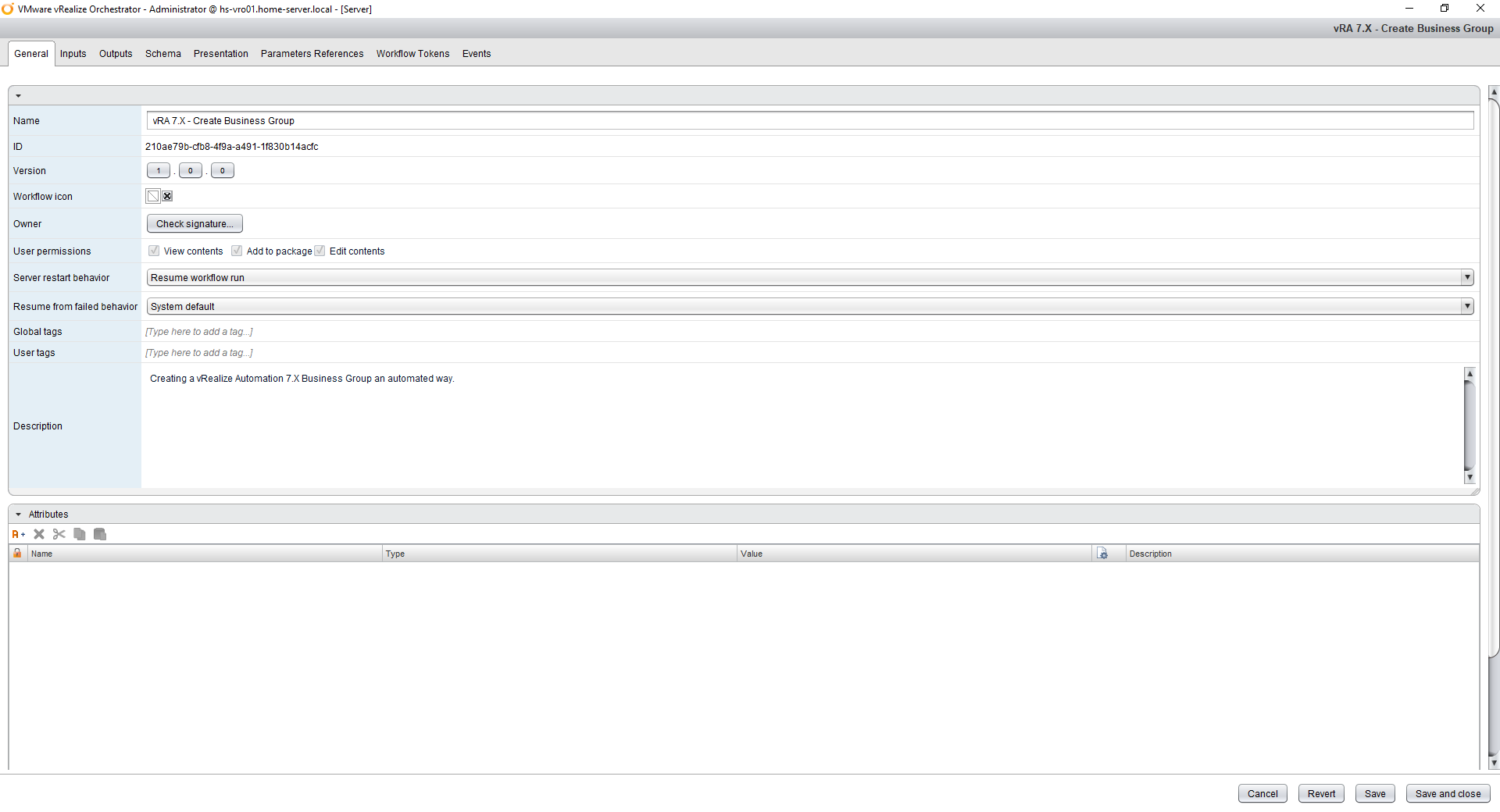
  • Workflow Name: vRA 7.X – Create Business Group
  • Version: 1.0
  • Description: Creating a vRealize Automation 7.X Business Group in an automated way.
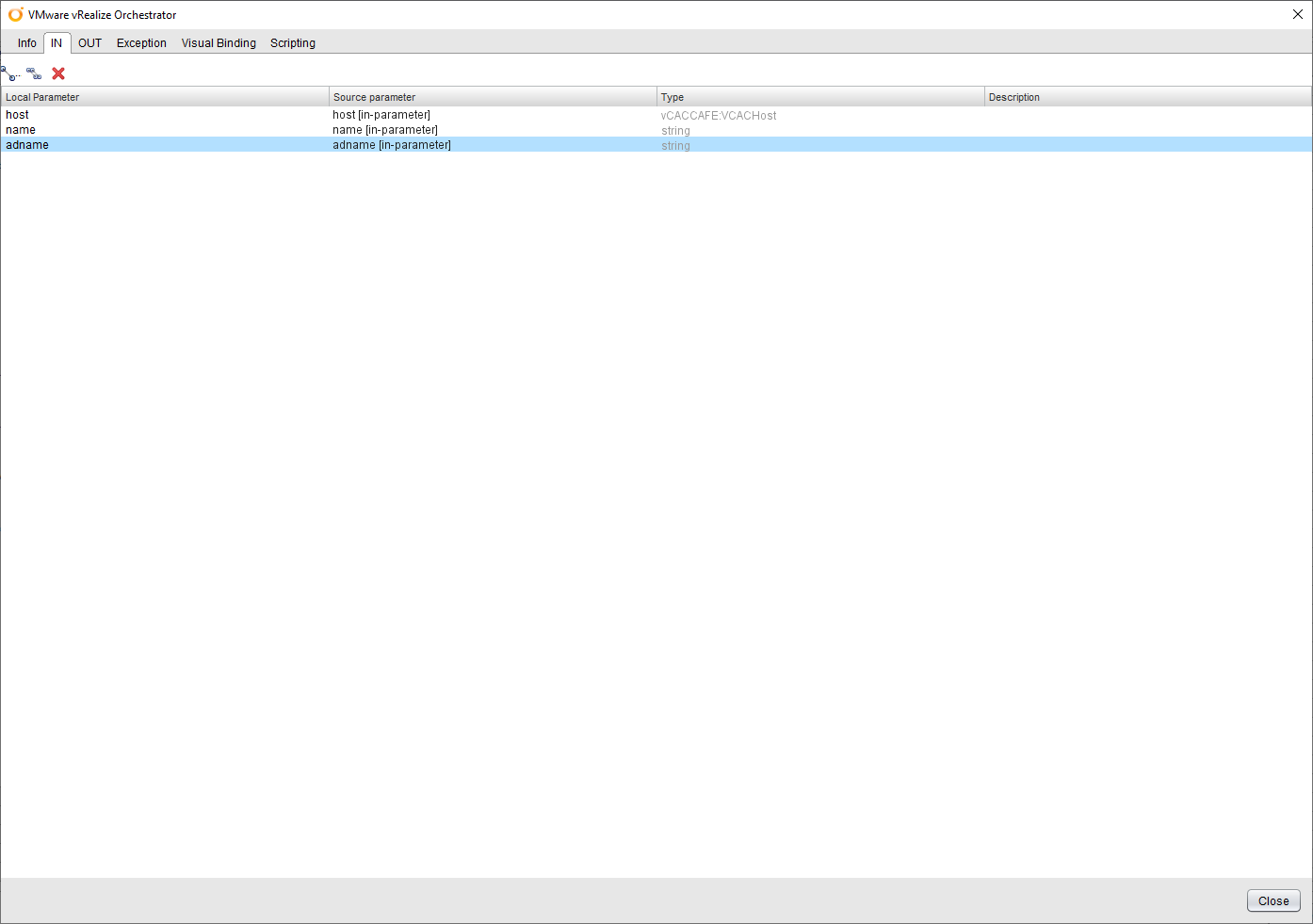
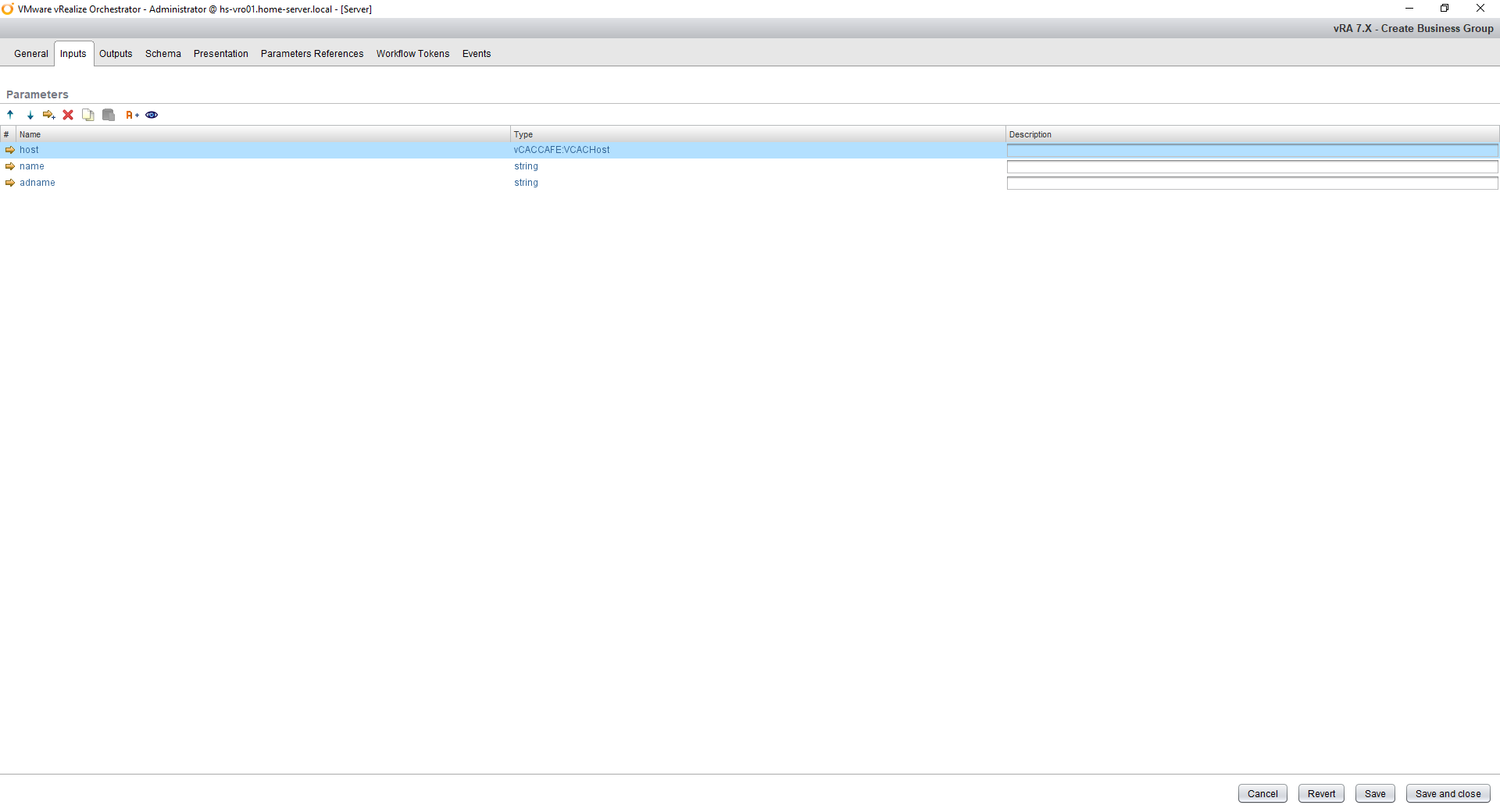
  • Inputs:
    • host (vCACCAFE:VCACHost)
    • name (string)
    • adname (string)
  • Outputs:
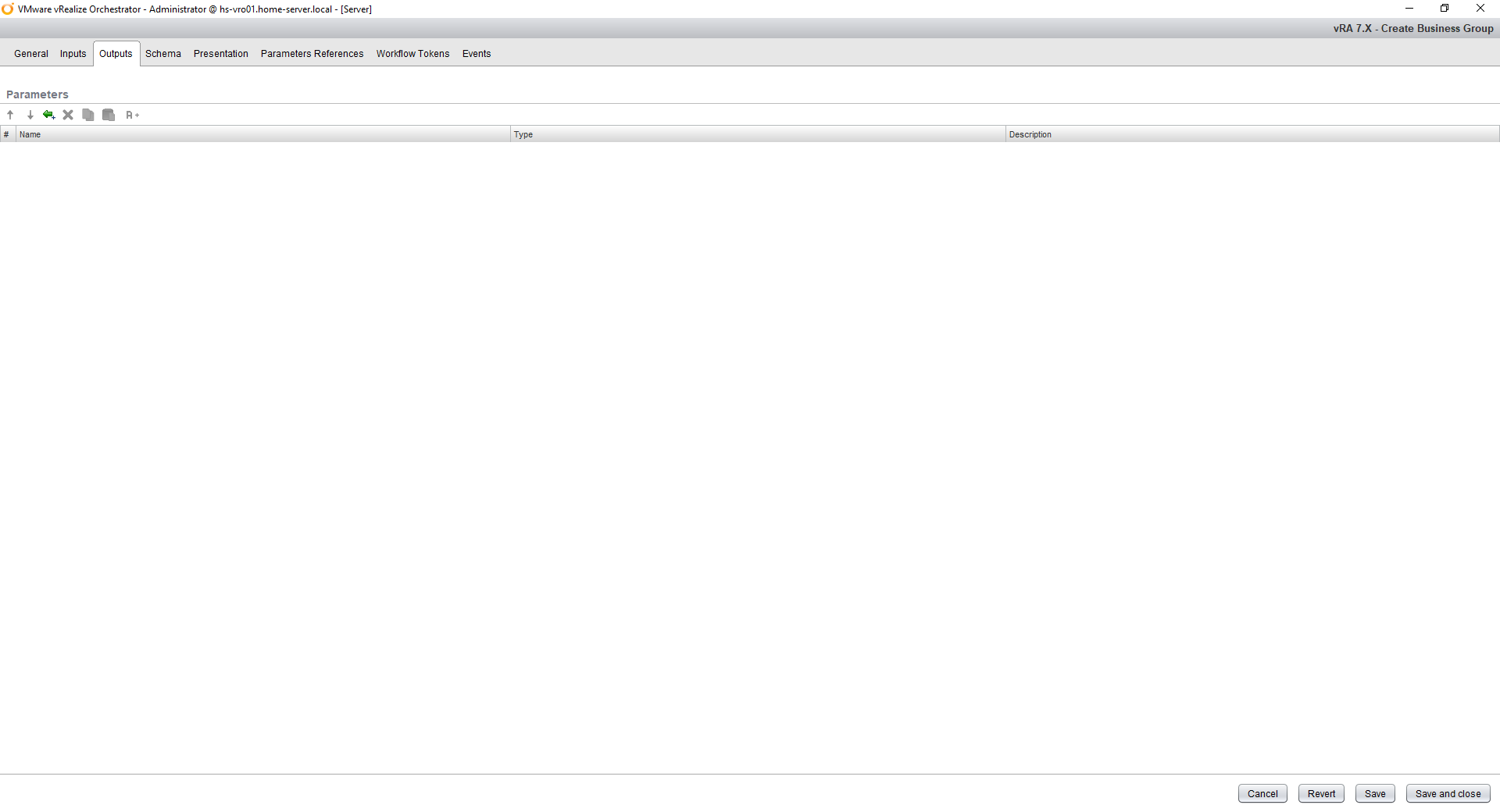
    • None
  • Presentation:
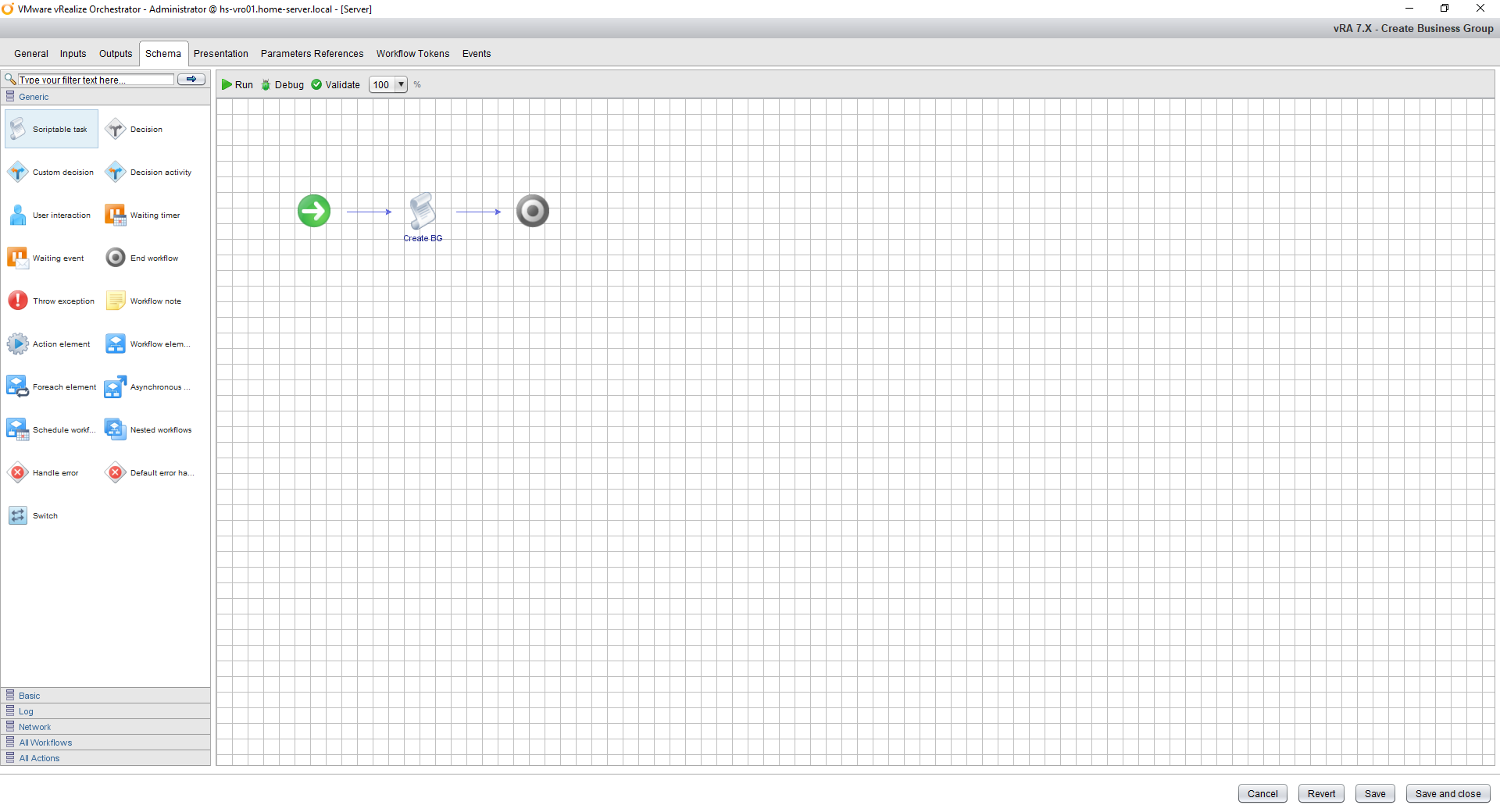
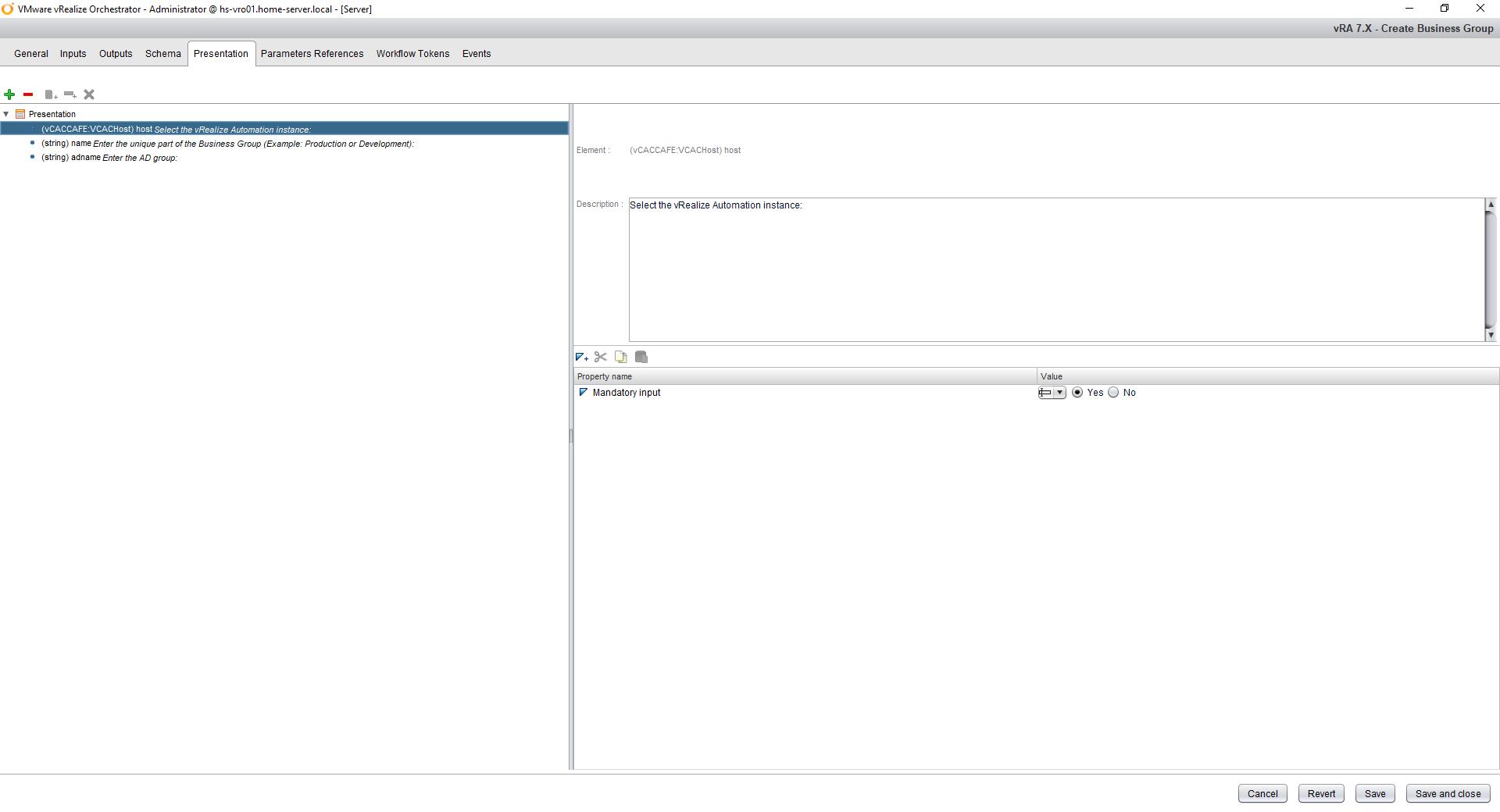
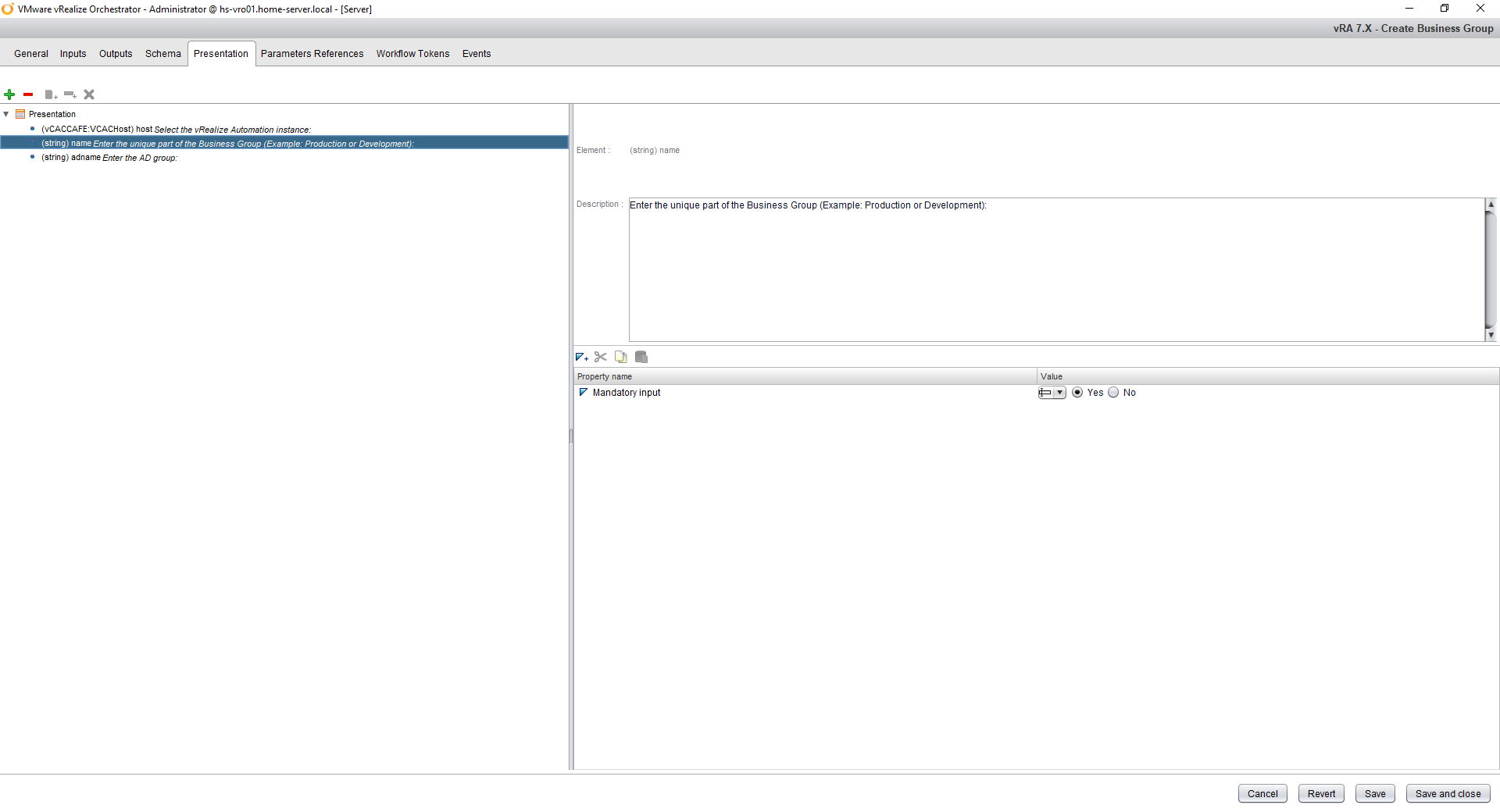
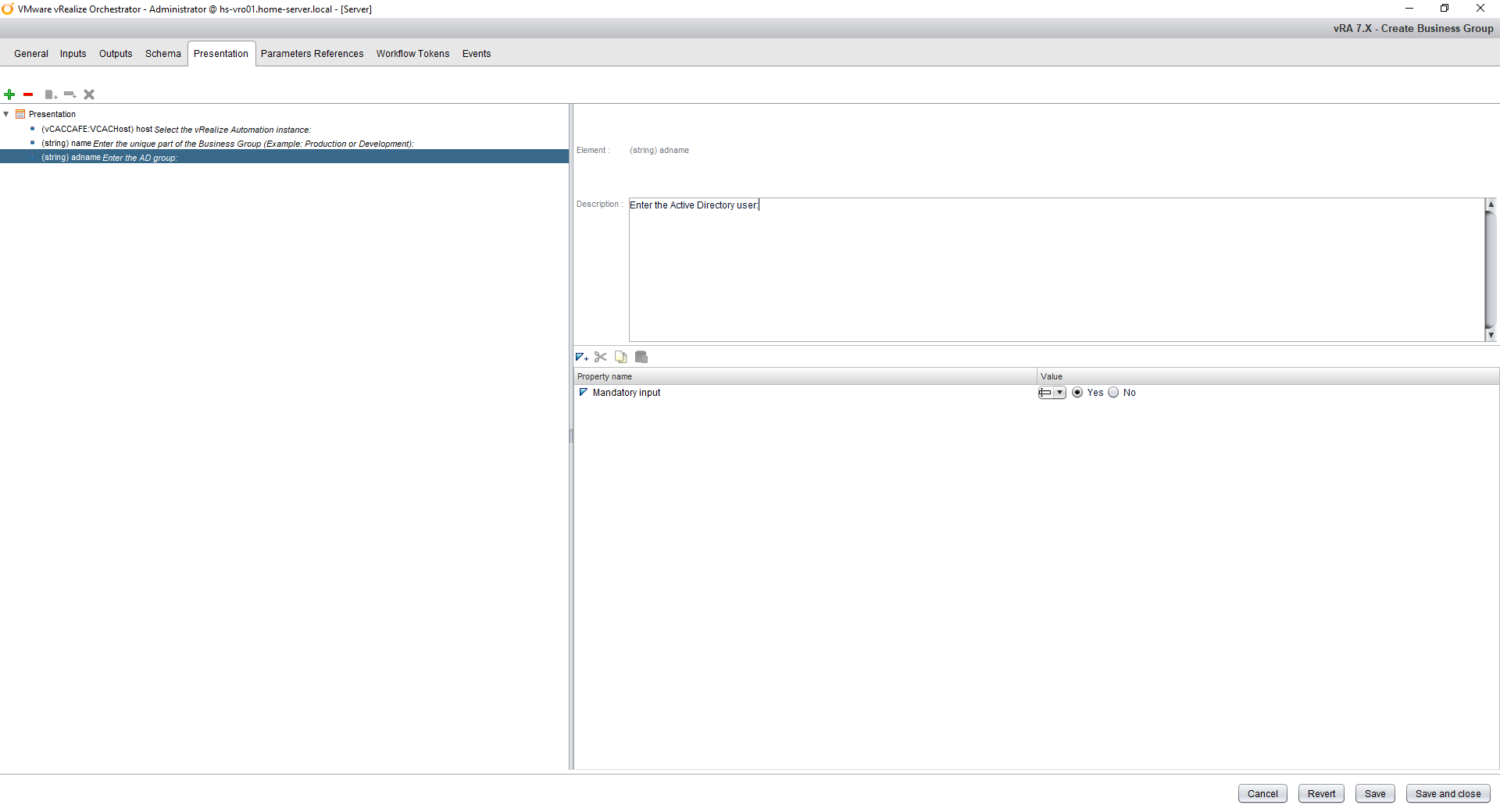
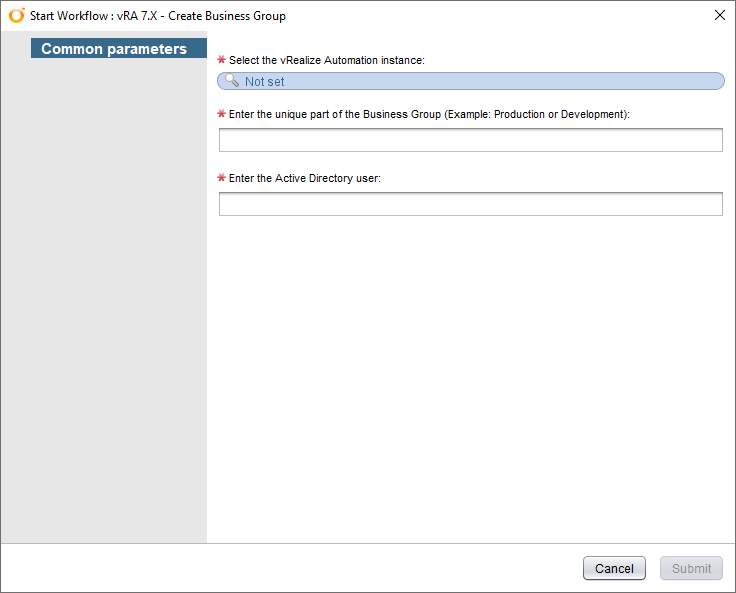
    • See the screenshots below.

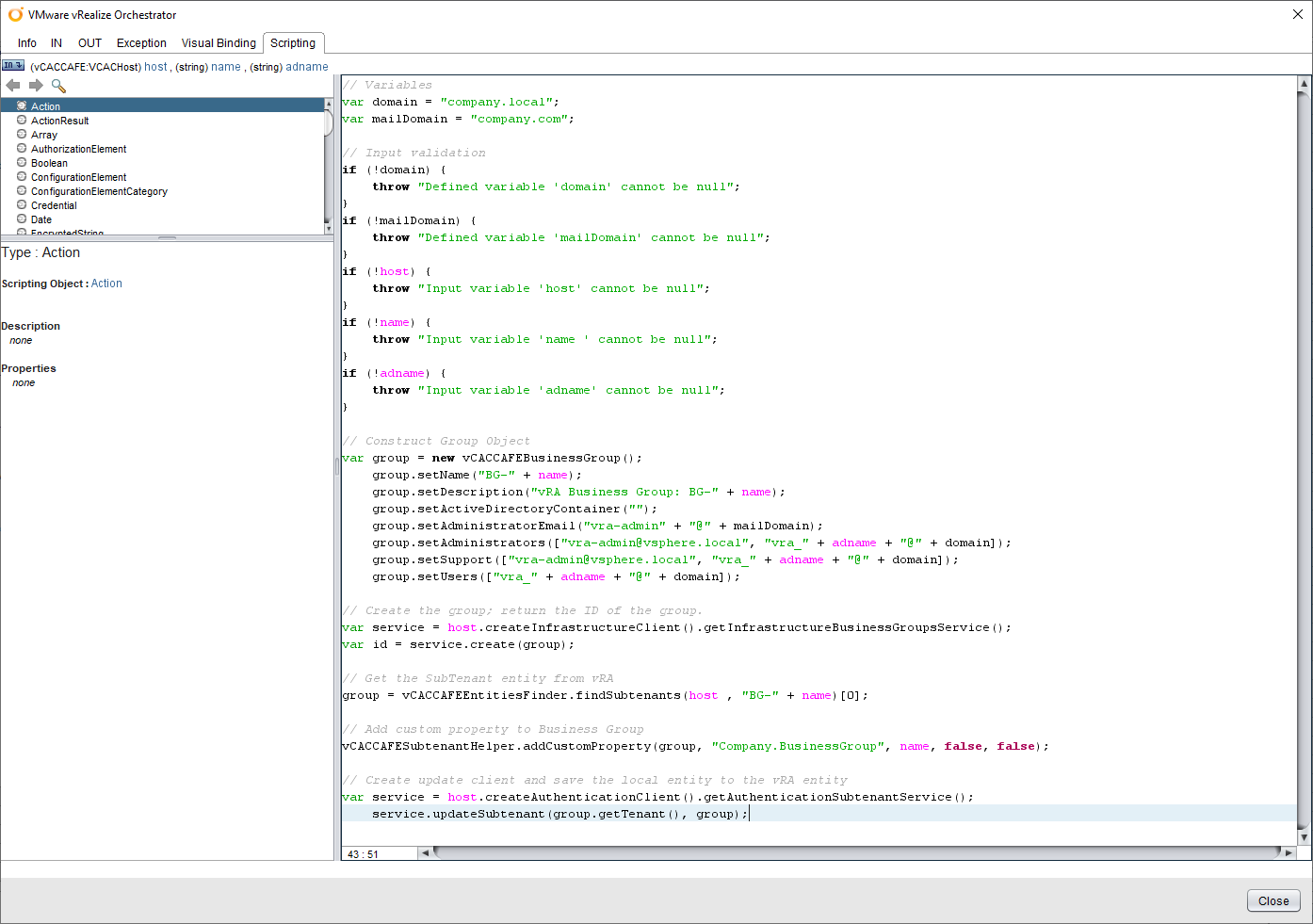
Here is the vRealize Orchestrator code in the Scriptable Task:

// Variables
var domain = "company.local";
var mailDomain = "company.com";

// Input validation
if (!domain) {
	throw "Defined variable 'domain' cannot be null";
}
if (!mailDomain) {
	throw "Defined variable 'mailDomain' cannot be null";
}
if (!host) {
	throw "Input variable 'host' cannot be null";
}
if (!name) {
	throw "Input variable 'name ' cannot be null";
}
if (!adname) {
	throw "Input variable 'adname' cannot be null";
}

// Construct Group Object
var group = new vCACCAFEBusinessGroup();
	group.setName("BG-" + name);
	group.setDescription("vRA Business Group: BG-" + name);
	group.setActiveDirectoryContainer("");
	group.setAdministratorEmail("vra-admin" + "@" + mailDomain);
	group.setAdministrators(["vra-admin@vsphere.local", "vra_" + adname + "@" + domain]);
	group.setSupport(["vra-admin@vsphere.local", "vra_" + adname + "@" + domain]);
	group.setUsers(["vra_" + adname + "@" + domain]);

// Create the group; return the ID of the group.
var service = host.createInfrastructureClient().getInfrastructureBusinessGroupsService();
var id = service.create(group);

// Get the SubTenant entity from vRA
group = vCACCAFEEntitiesFinder.findSubtenants(host , "BG-" + name)[0];

// Add custom property to Business Group
vCACCAFESubtenantHelper.addCustomProperty(group, "Company.BusinessGroup", name, false, false);

// Create update client and save the local entity to the vRA entity
var service = host.createAuthenticationClient().getAuthenticationSubtenantService();
	service.updateSubtenant(group.getTenant(), group);

Screenshots

Here are some screenshot(s) of the Workflow configuration that helps you set up the workflow as I have done!

Wrap-up

This is a vRealize Orchestrator workflow example that I use in my home lab. It creates vRealize Automation Business Groups to improve consistency and speed.

Keep in mind: Every lab and customer is different. In this workflow I use for example the prefix BG- for Business Groups. What I am trying to say is modify it in a way that is bested suited for your environment.

Thanks for reading and if you have comments please respond below.